



Create a site
Griddo is a multisite tool that lets you create as many sites as you need, with no limit. You can separate your sites by schools, by business areas, by campaigns, and so on.
Overview
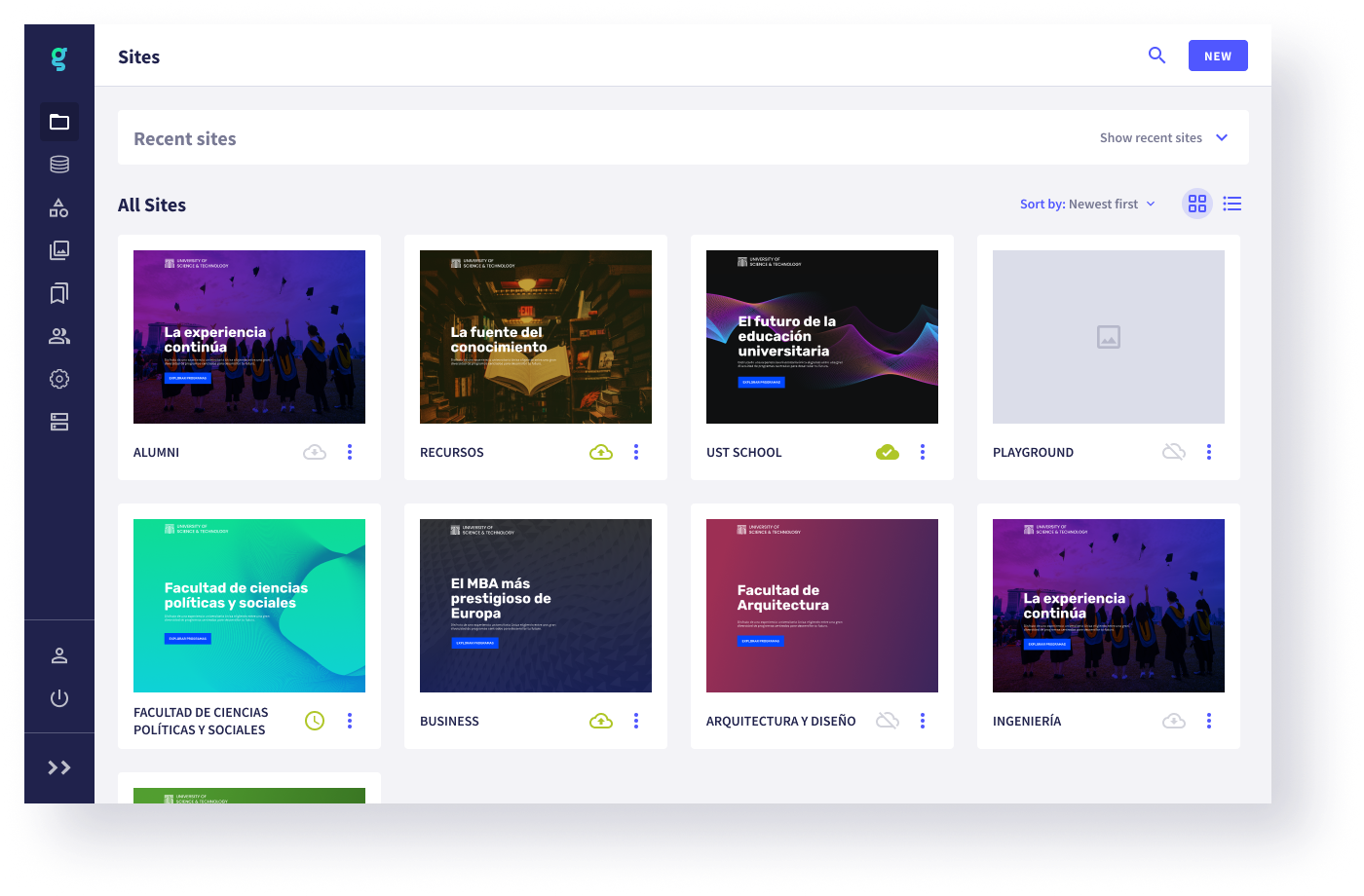
Section titled “Overview”The first thing you will see when you log in to Griddo is the screen with your sites. From here you can access the one you need and perform certain actions, described below.
Create a site
Section titled “Create a site”Creating a site is very easy. Just click the New button that appears on the right of the top bar to start the creation process.
-
Modal: When you click to create a new site, a modal opens to complete the site creation.
-
Name: We assign a name to the new site.
-
Default language: We choose the site’s default language from the list of languages that appears in the dropdown.
-
Domain: We choose the domain for this new site from the list that appears in the dropdown. They will have been created beforehand.
-
Path: We enter the site’s full path, including any prefixes you want per language.
-
Button: Once we have completed all the fields, the button, previously inactive, becomes active to finalize the site creation. Once created, we access its settings.
Configure the site
Section titled “Configure the site”In the site settings we can edit the site’s essential data:
Site nameYou can change the site name.TimezoneYou can define the timezone for this site.Site themeYou can choose a theme for the site. By default, it will apply the design system’s default theme.Site faviconYou can select an image for the site’s favicon.Navigation modulesBy default, the site takes the navigation modules that come by default in the design system. If you need to use different ones, you can select them.
In addition, Griddo uses a few images to identify the site:
Small avatarAppears at the top of the Griddo side menu when it is collapsed. It is usually a square version of a logo.Big avatarAppears at the top of the Griddo side menu when it is open. It is usually a horizontal version of a logo.Site thumbnailUsed to identify the site in the sites listing.
Available actions
Section titled “Available actions”From the sites screen itself, you can perform some actions to make managing and reviewing your sites easier.
Change the view type
Section titled “Change the view type”The default view is grid mode, but you can switch to list mode at any time. You can also change the sorting and filter the listing.
Publish / unpublish a site
Section titled “Publish / unpublish a site”To publish or unpublish a site from the listing, just open the actions on the site card and select the publish or unpublish option.
Delete a site
Section titled “Delete a site”To delete a site from the listing, you need to open the actions on the card and select the delete option.