



SEO Previews
Griddo includes an SEO preview tool that lets you review and optimize your page’s headings and keywords before publishing, all without leaving the editor.
The goal is to ensure that your content is easily readable both for your users and for search engines, guaranteeing a correct structure before publishing. You access it from the SEO & Analytics tab in the right-hand panel, within the SEO Previews section. Inside this section, you’ll see two key options:
- Open Headings Preview To review and edit the page’s headings.
- Open Keywords Preview To review the keywords and how many times they appear in the content.
Managing Headings
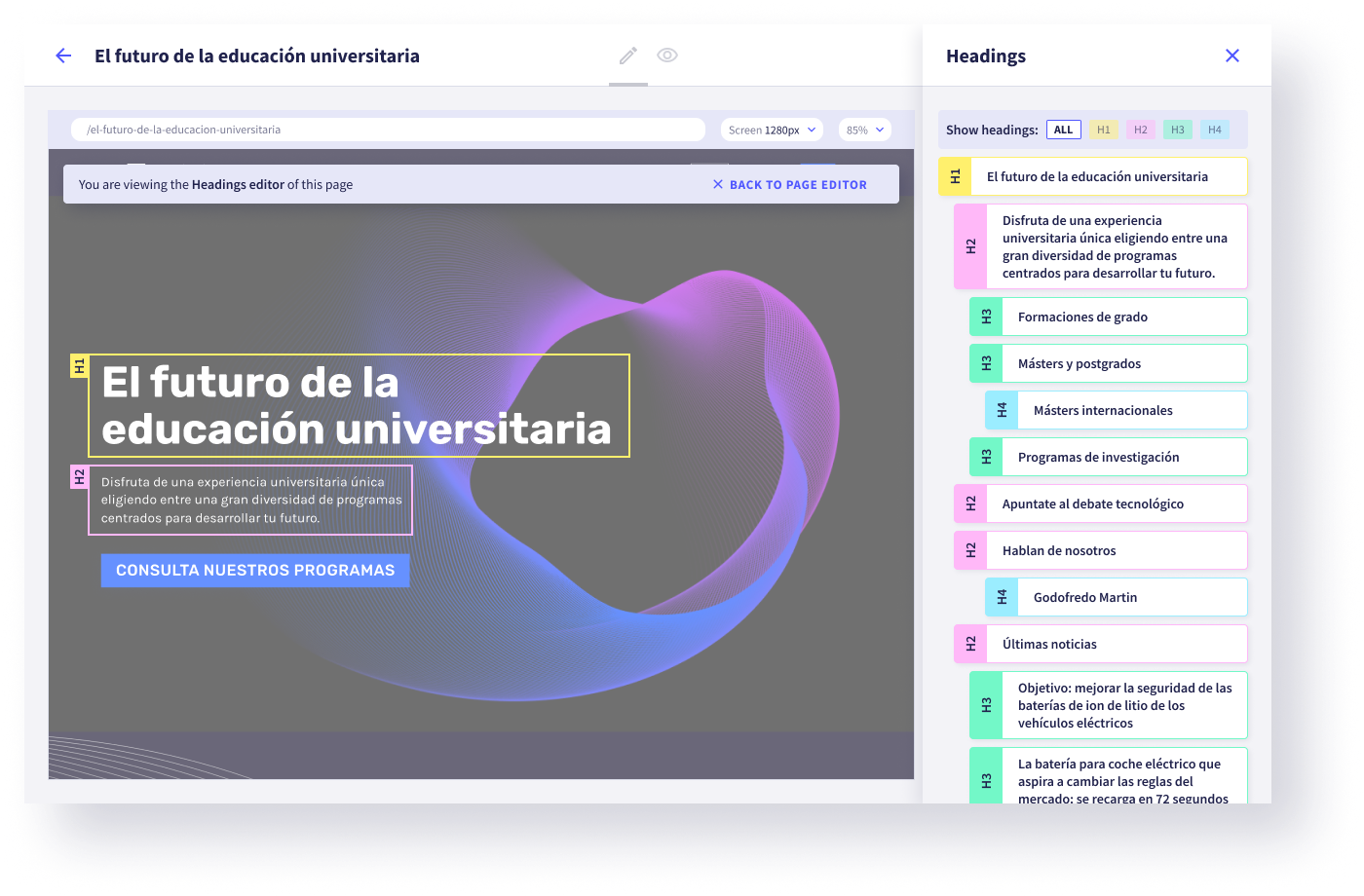
Section titled “Managing Headings”When you click Open Headings Preview, the editor enters a technical view mode where two things happen simultaneously:
- In the preview: The headings are visually highlighted with colored labels indicating their level (H1, H2, H3…).
- In the right-hand panel: The Headings Panel appears, an interactive list of all the headings ordered by their appearance on the page.
Filter and review the hierarchy
Section titled “Filter and review the hierarchy”To make reviewing easier on long pages, use the filters at the top of the panel (ALL, H1, H2, H3…).
Recommended use: Filter by H1 to make sure there’s only one, or by H2 to review the main structure of your narrative.
SEO Alerts
Section titled “SEO Alerts”Griddo automatically audits your structure in real time. If it detects inconsistencies, you’ll see the SEO Alerts block in the panel. This block will tell you:
- The type of error (e.g. “Jumps in the hierarchy”).
- How many headings are affected.
- Arrows to navigate directly to each error.
As you navigate between alerts, the affected heading is selected in the list and the preview scrolls to it, so you can fix it on the page before publishing.
Managing Keywords
Section titled “Managing Keywords”When you select Open Keywords Preview, you activate keyword analysis mode:
- In the preview: Every time your keywords appear in the text is highlighted in yellow.
- In the right-hand panel: You’ll see the list of assigned keywords and their usage counter (X used).
Interpreting the counter The panel gives you immediate feedback on your keyword density:
- Number in gray (e.g. 12 used): The keyword is present and well detected.
- Number in red (0 used): The keyword is configured but does not appear in the text. You should include it in your writing or consider whether to remove it.
Add and manage keywords
Section titled “Add and manage keywords”To create a new one:
- Click
+ Add new keywordat the end of the list. - Type the word or phrase and press
Enter. - Click Create keyword to save. The label will appear in the list immediately.
To delete:
- If it has no uses (0 used): When you hover over it, the delete icon will appear. Deletion is immediate.
- If it’s in use: For safety, Griddo will ask you for confirmation, since this action is irreversible.
Next steps
Section titled “Next steps”Once you’ve validated that the structure (Headings) is correct and that the content includes the right keywords, your page is ready at the content level.