



Publishing and unpublishing pages
Publishing a page you’ve created in Griddo is the final step to make it available online. Once you do, your page will be visible on the internet for anyone to visit.
Publish a page
Section titled “Publish a page”There are several ways to publish your page when you consider it ready to go live:
- From the page itself.
- From the content list.
From the page itself
Section titled “From the page itself”Inside the page you want to publish, go to the Editor’s top bar and access the page actions. There you’ll find the publish option.
- Actions: Access the page actions from the top bar of the page editor.
- Publish: Click the
Publishoption. - Publishing: The page will change its icon to
Publication pendingwhile the publishing process starts.
From the content list
Section titled “From the content list”From the page list, access the actions through the three vertical dots to select the publish option.
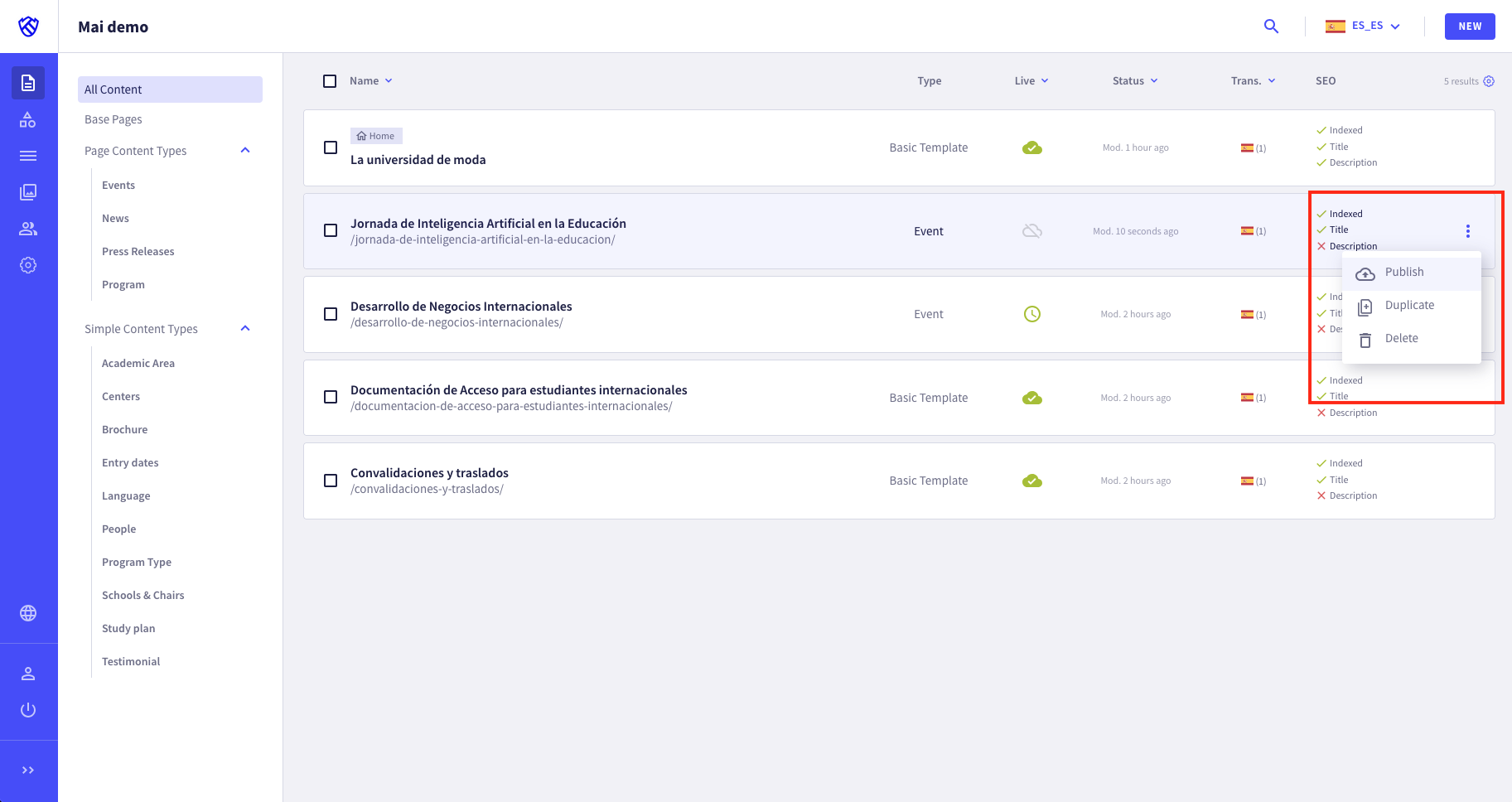
You can also publish several pages at once from the same content list, by selecting them and accessing the bulk actions at the top.
Making changes after publishing
Section titled “Making changes after publishing”Even after publishing it, you can modify your page as many times as you like. Every time you make a change, simply click Save & Publish for the updates to be reflected online.
Schedule a publication
Section titled “Schedule a publication”If you want your page to be published on a specific day and time, Griddo lets you schedule the publication for the exact moment you choose.
- Actions: Access the page actions from the top bar of the page editor.
- Schedule: Click the
Scheduleoption. - Modal: In the modal, select the date and time you want the page to be published.
- Scheduled: The page will change its icon to
Scheduledand will start the publishing process on the selected date and time.
View your page online
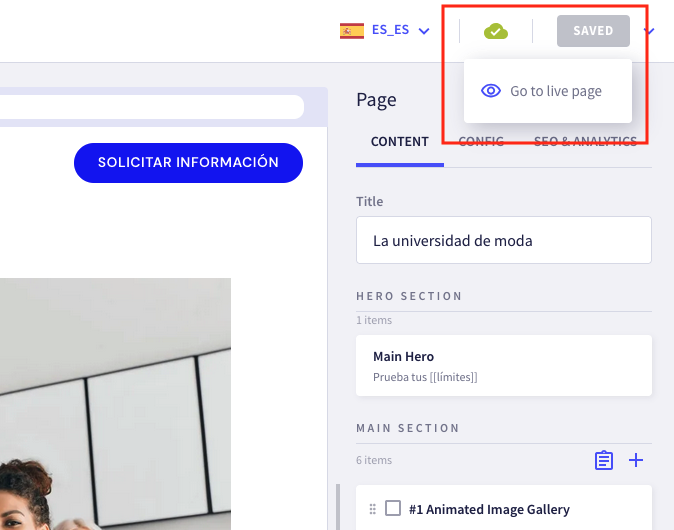
Section titled “View your page online”Once you’ve published your page, it will automatically appear online and anyone who types its URL will be able to see it. You can access your page directly from the Editor by clicking the top bar, on the Live status icon: Go to live page.
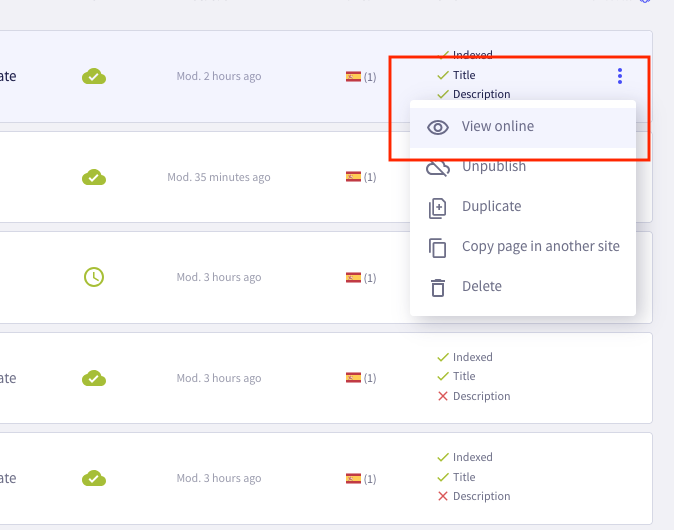
You can also do it from the page list, accessing the page options through the three vertical dots.
| From the page Editor | From the List |
|---|---|
 |
 |