



Draft preview
The draft preview feature lets you share a work-in-progress page with external reviewers without them needing a Griddo account. Access is granted through a secure link with a limited lifespan.
What is it for?
Section titled “What is it for?”When you need someone outside your team (a client, a collaborator, or a reviewer) to see a page before publishing it, you can generate a preview link. The person who receives the link accesses the draft directly from their browser, with no sign-ups or passwords.
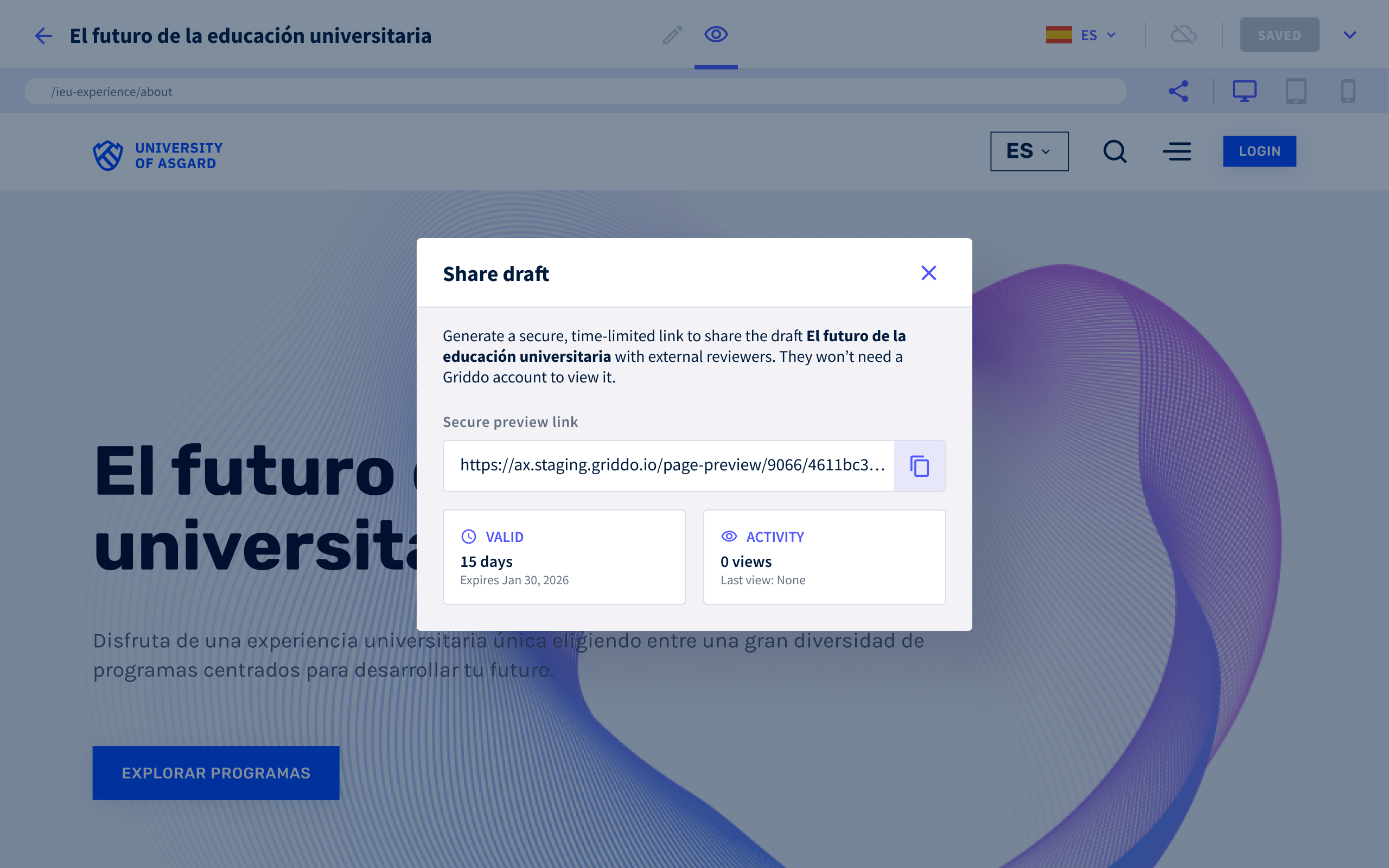
Create a preview token
Section titled “Create a preview token”- Preview: In the editor’s top bar, click the (eye) icon to enter preview mode.
- Share: In the preview bar, click (Share) to open the sharing options.
- Modal: The Share draft modal will open. You’ll see the automatically generated link under the Secure preview link label, along with the token’s status: validity period, expiration date, and number of visits.
- Copy: Copy the link (icon to the right of the field) and share it with your reviewer. A toast will appear confirming that the URL has been copied successfully.
- Info Close the modal. You’ll see a fixed notification at the bottom of the screen indicating how long the link is valid for. It stays visible even when you scroll, and you can reopen the modal at any time by clicking here.
Renew the preview token
Section titled “Renew the preview token”The token is valid for 15 days. When 14 days or fewer remain, the option to renew it and extend access appears.
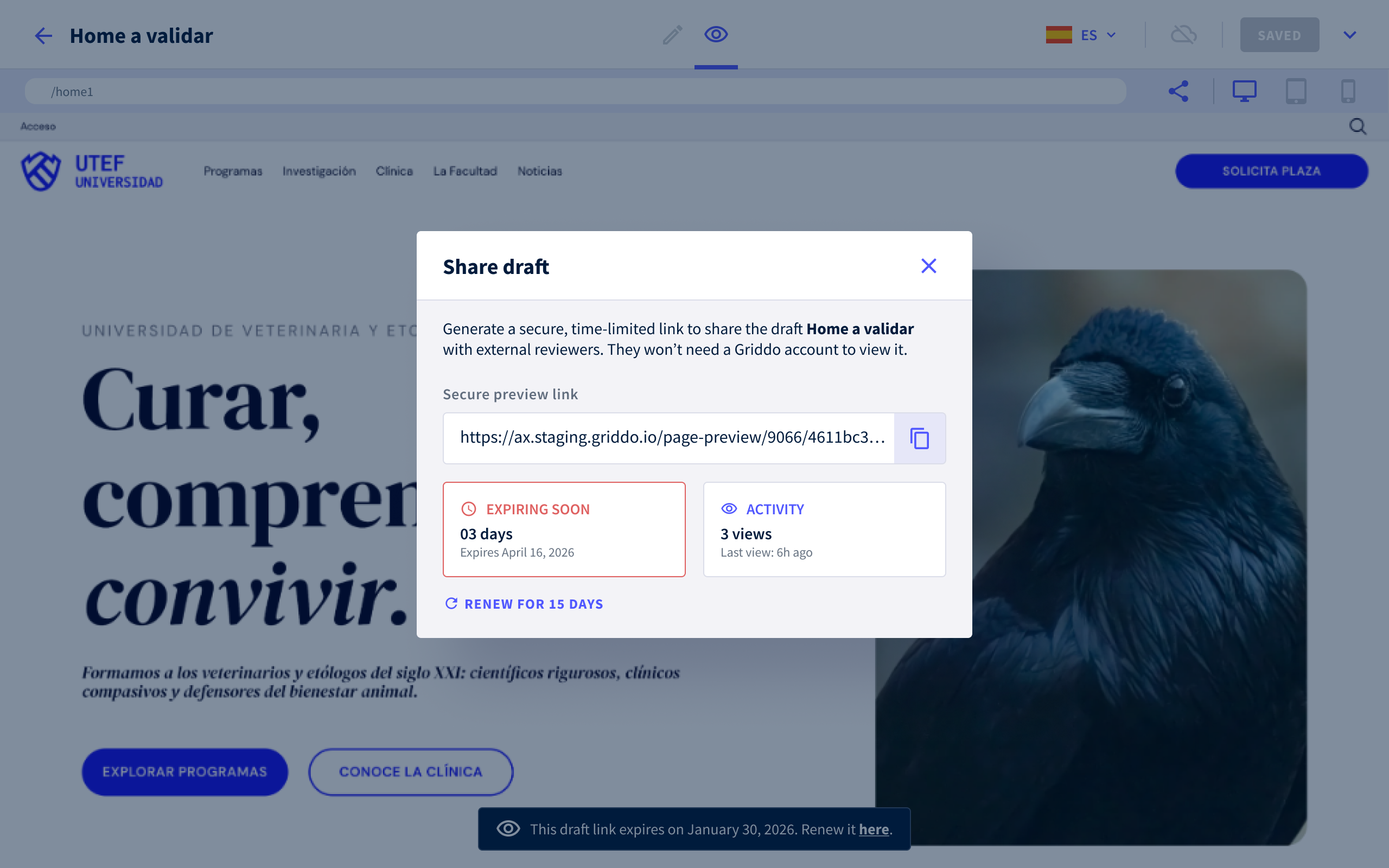
- Share: From preview mode (), click (Share) in the preview bar, or access it from the fixed notification by clicking here.
- Modal: The modal shows the Expiring soon status with the days remaining and the visits recorded. From here you can click
Renew for 15 dayto renew it. - New date: The modal shows the new expiration date. If you’re happy with it, confirm with
Renew link. If not, cancel and the token will keep expiring on the original date. - Info: The fixed notification at the bottom updates automatically with the new expiration date.
Expired token: how to reactivate it
Section titled “Expired token: how to reactivate it”When the token expires, the link stops working. Depending on how much time has passed since expiration, the behavior differs:
- 15 days or fewer: a banner appears at the bottom of the editor letting you know it has expired, with the option to generate a new one directly from there.
- More than 15 days: no banner appears.** The flow is identical to creating a token for the first time.**
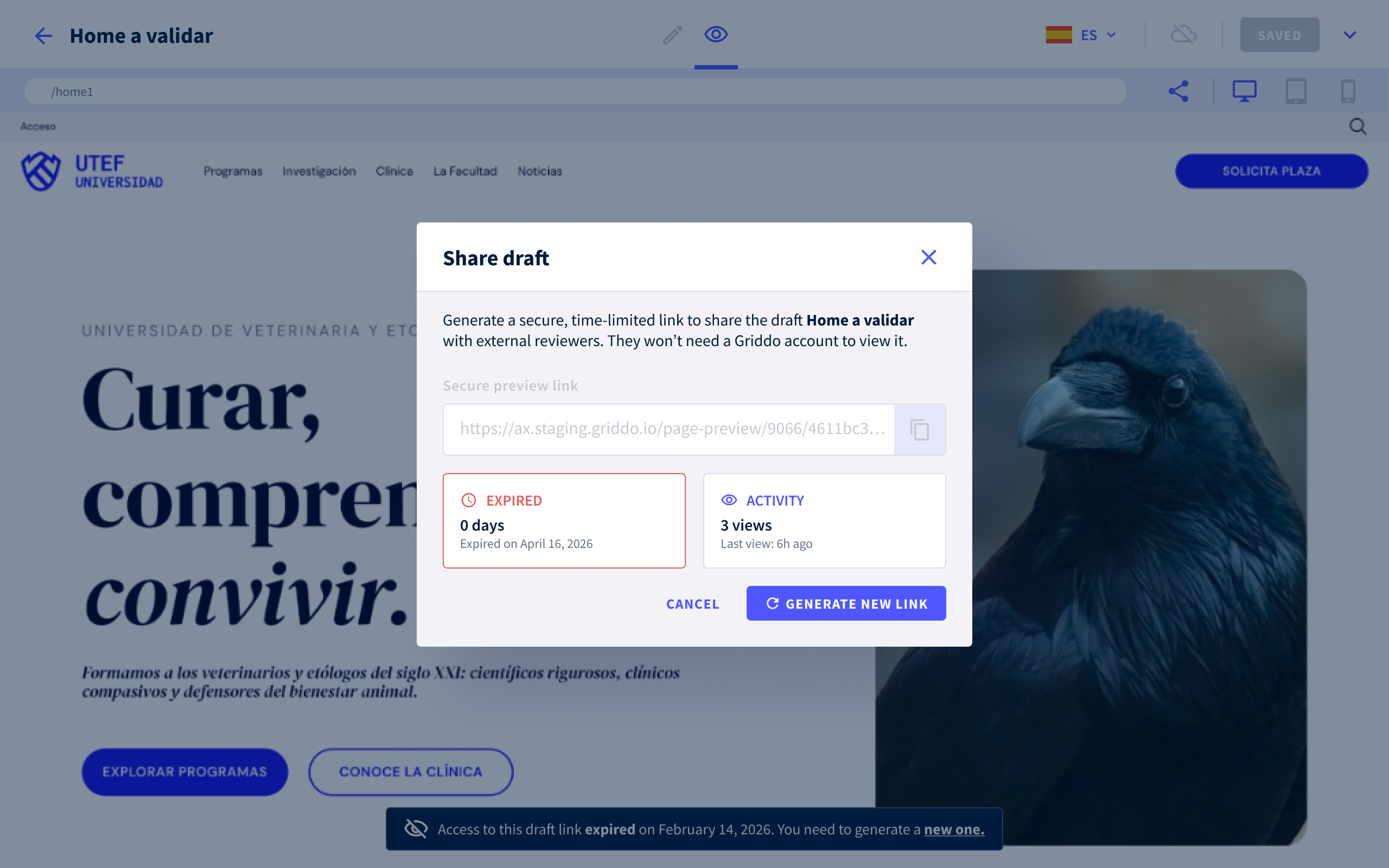
To reactivate access when fewer than 15 days have passed:
- Share From preview mode (), click (Share) in the preview bar, or access it from the fixed notification by clicking here.
- Modal: The modal will show the Expired status with 0 days remaining and the date it expired. The link appears disabled and cannot be copied.
- Generate again: Click
Generate new link. A new token is generated with a validity of 15 days. Copy the link and share it with your reviewers. - Info: The fixed notification at the bottom updates with the new expiration date.