



Creating and editing pages
In Griddo you can create as many pages as you need. Pages are highly flexible and are built by adding modules that you can arrange in any order you like.
Create a page
Section titled “Create a page”From the page list, we follow these steps:
- New: Clicking the
Newbutton opens the modal to choose which type of page we want to use. - Modal: In the modal we choose the page type. The first one that appears is
Base template. It’s Griddo’s basic page. - Create: The modal closes and we enter the editor for the newly created page.
The page is now created. If you have configured the navigation modules beforehand, you’ll see that the page appears empty except for the header and footer.
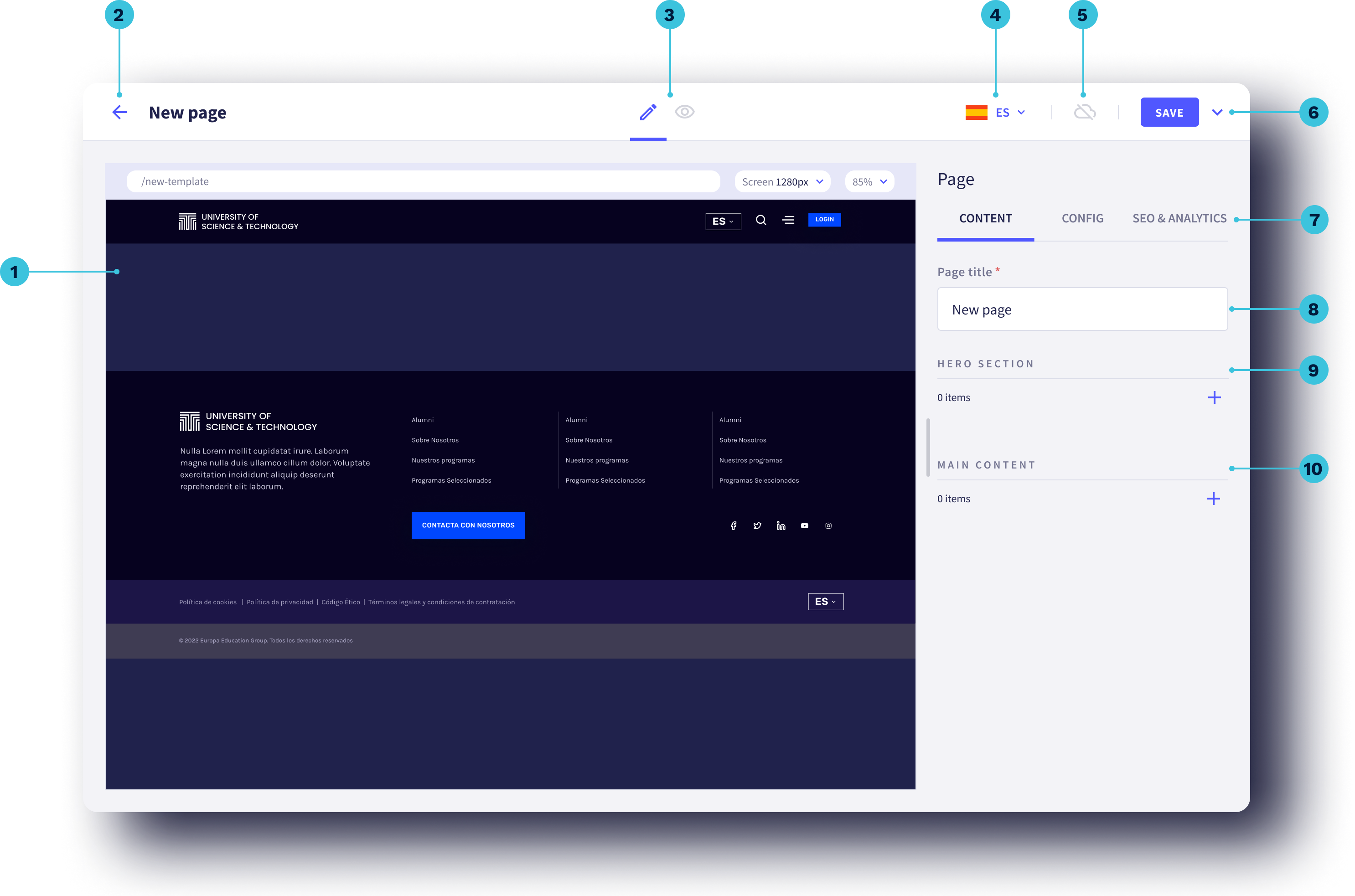
| Reference | Reference |
|---|---|
1 Page view |
2 Back to the list |
3 Display modes |
4 Page language |
5 Publication status |
6 Save and page actions |
7 Access to page options |
8 Page title |
9 Section to place the page hero |
10 Section to place the rest of the modules |
Add modules to the page
Section titled “Add modules to the page”- Add hero: To add a Hero module, the page’s main image, we click in
Hero sectionand a side panel will open with all the available heroes. You can only add one hero to a page. - Add modules: To add the modules that will make up the page, we click in
Main Contentand a side panel will open with all the available modules. You can add as many modules as you need to build your page. - Save: Griddo doesn’t have autosave yet, so don’t forget to click save every time you make any change.
Edit content in modules and components
Section titled “Edit content in modules and components”Editing the page content is very easy. You just have to go into the module or component you want to edit and fill in the fields that appear. When you go in to edit a module, you’ll also find two tabs:
ContentThis holds all the fields needed to fill in the content of the module or component. This tab appears in all modules and components.ConfigAccess to the module or component’s configuration. These are changes that don’t affect the content, but the visual design of the module or component. For example, the theme, the layout, etc. It’s more common to see it in modules, and only in those that have several design options.
Actions available with modules
Section titled “Actions available with modules”We can perform three main actions with modules or components:
-
Copy: We can copy modules or components to paste them into any other page, whether on the same site or a different one. The copied module or component is saved to the clipboard until we paste it wherever we want. The pasted module can be edited independently of the original module.
-
Duplicate: This action lets you copy and paste the same module on the page you’re currently working on. The duplicated module will appear right below the original and is not saved to the clipboard. The content of the duplicate can be edited independently of the original.
-
Delete: We can delete a module or component we no longer need. This action is useful for keeping the page organized and free of unnecessary content.
Accessing the actions
Section titled “Accessing the actions”There are several ways to access these actions:
- From the editor’s side panel: Through the three dots that appear when you hover over the module or component.
- Within the module itself: Accessing its actions through the three dots.
Multiple selection
Section titled “Multiple selection”Griddo also lets you select several modules or components to perform the same action on all of them at once. This saves time and makes it easier to manage content at scale.
Page configuration
Section titled “Page configuration”In the right-hand panel, we have all the page’s configuration options. Clicking the Config tab gives us access to them.
Set the page as the home
Section titled “Set the page as the home”To set this page as the site’s home, we just have to check the set as home option that appears in the config tab of the right-hand panel. We can only have one home per site.
Define whether this page is a child of another
Section titled “Define whether this page is a child of another”In all other cases, where this page won’t be the home, we can select the parent we want it to have. That is, whether this page will sit inside another one. We just have to select it in the Parent selector that appears in the options.
Change the page theme
Section titled “Change the page theme”When you have several themes in your brand’s design system, by default the page will show the theme defined in the site configuration. But you can change it only on that page whenever you want. You have to go into the page’s Config tab and change it in the selector that appears.
Keep the navigation modules with the same theme as the rest of the site
By default, Griddo changes the theme of all the modules on the page, including the navigation modules. If you want to keep the original theme on these modules, select Customize header and footer themes and change whatever you need.
Add add-ons to this page.
Section titled “Add add-ons to this page.”Griddo makes it possible to add Add-ons from the site configuration to add blocks of custom code to pages that bring a variety of custom functions. If we want to add chatbots, heatmaps, or any other add-on we haven’t set to appear by default on the page, we go into the page’s config tab and see a section to manage them.
Configure the page’s SEO
Section titled “Configure the page’s SEO”Griddo doesn’t need plugins to work on the page’s SEO. It’s as easy as going into the SEO & Analytics tab and filling in the fields that appear in the SEO data section.
Optimization for AI Assistants
Section titled “Optimization for AI Assistants”Prepare your content for the new era of search.
Section titled “Prepare your content for the new era of search.”AI assistants such as ChatGPT, Gemini, or Claude are carrying more and more weight when it comes to discovering, summarizing, and recommending web content.
Griddo automatically prepares your pages so they can be easily discovered and used by these kinds of assistants. By default, all pages are included as content available for AI, though you can decide which pages to prioritize or exclude according to your editorial or SEO needs.
How it works
Section titled “How it works”This feature lets you indicate which pages of your site should be considered priority content for external AI assistants.
When a page has this option enabled, Griddo automatically includes it in a special listing that helps these systems identify the most relevant URLs on your site, without needing to crawl its entire structure.
You don’t need to do any additional configuration: Griddo handles the entire technical process.
- Open the page you want to edit
- Go to SEO & Analytics
- Access the GEO (LLMs) section
- Review the Include this page in LLMs.txt option
When can it be useful?
Section titled “When can it be useful?”It can make sense to uncheck this option on pages you don’t want to prioritize for AI assistants, for example:
- Internal or very specific-use pages
- Temporary or one-off content
- Pages with duplicate information
- Landing pages created for very specific campaigns
- Content that adds no value as a public reference
When you disable the option, the page simply stops being included as priority content for these systems.
Other options
Section titled “Other options”In addition, on the same tab, we can also fill in the Social media information and the Analytics Data layer.