



Media Gallery
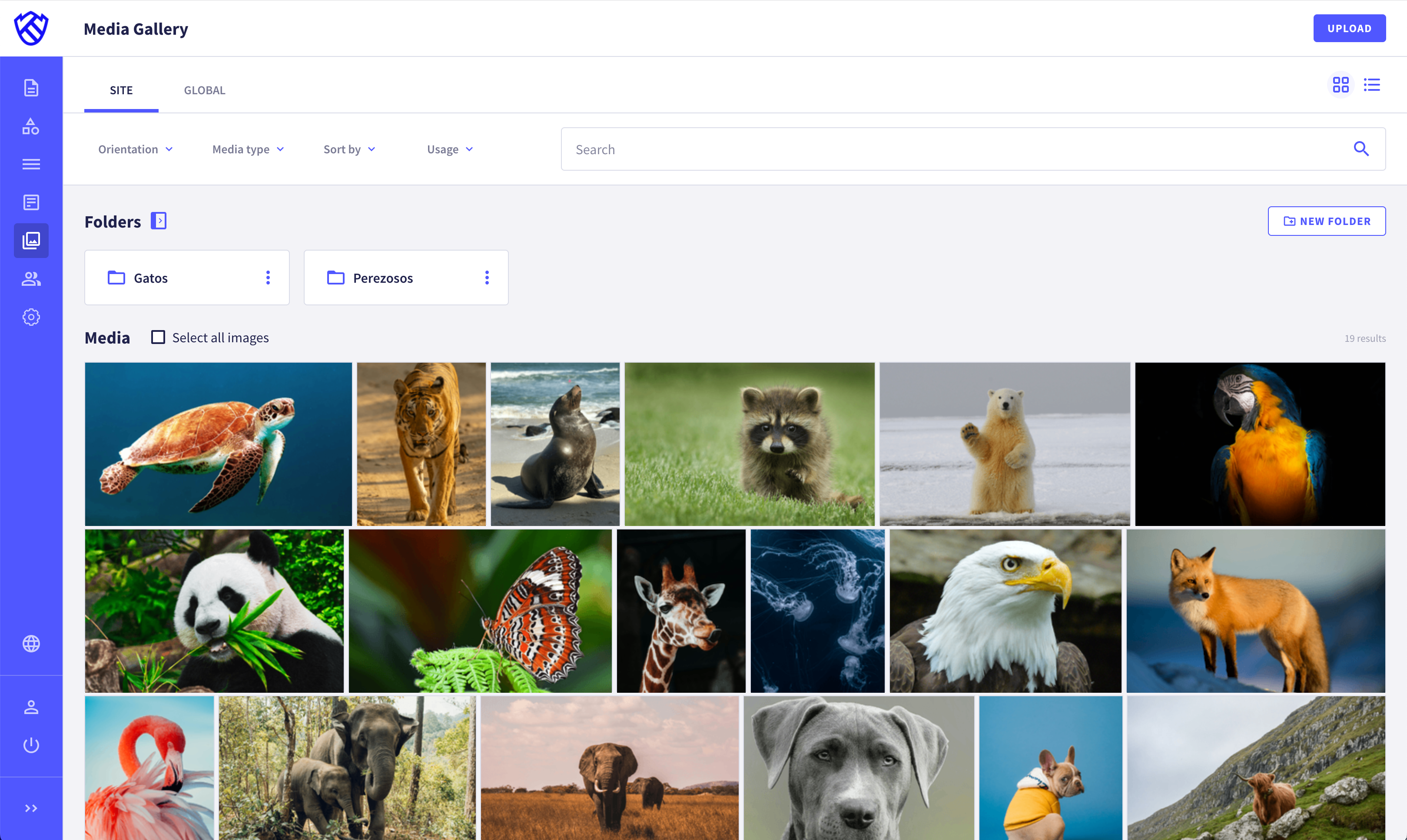
Griddo’s Media Gallery is the space where you can upload, organize and manage all the images used across your sites. From here you can store photographs, illustrations, icons or GIFs so you can easily reuse them on pages, modules and components.
Gallery types
Section titled “Gallery types”Global Media Gallery
Section titled “Global Media Gallery”The global gallery is available across all sites.
Local or site Media Gallery
Section titled “Local or site Media Gallery”Each site has its own gallery. The images are only accessible within the corresponding site.
Uploading images
Section titled “Uploading images”Uploading an image is very easy: just click the Upload button on the right of the top bar to start the upload process.
- Modal: A modal appears where you can drag or select multiple images, GIFs or icons.
- Uploading: Once the image is selected, the upload process begins. When it finishes, the image is already added to the gallery.
- Data: Once uploaded, you can fill in data such as title, alternative text and tags to make future searches easier, although AI does it for you if you have it enabled.
- Save: Save the changes and the image is updated with the added data.
Deleting images
Section titled “Deleting images”You can delete images in two ways:
- From the image list, by opening the available actions and selecting the
Deleteoption. - From its detail view, using the Delete button at the bottom of the panel.
Creating folders
Section titled “Creating folders”You can organize your images into folders:
- New folder: From the
New folderbutton and, if you have the folder panel open, from the icon that appears in the section you are in, you can create a new folder. - Modal: The modal opens so you can name the new folder. By default, the folder will be created in the location you are in, but you can select another folder to create it in.
- Folder: When the modal closes, the new folder appears.
Deleting folders
Section titled “Deleting folders”Deleting a folder is as simple as opening the folder actions and selecting the Delete option. Doing so will delete both the folder and the images it contains.
Accessing the global Media Gallery from a site’s Media Gallery
Section titled “Accessing the global Media Gallery from a site’s Media Gallery”From our site, if we want to access the global Media Gallery, we just need to click the Global tab that appears above the filters. We will be able to view and add them to our pages from the editor, but we will not be able to edit or delete them from the site.
Other available actions
Section titled “Other available actions”From the Media Gallery, you can perform several actions to make managing and reviewing images easier.
Renaming a folder
Section titled “Renaming a folder”You can rename a folder by opening the actions and selecting the Rename option. Type the new name in the modal that appears and your folder will be renamed.
Moving items between folders
Section titled “Moving items between folders”You can move both images into folders and folders into other folders. Open the folder or image actions and select the Move to option. Then choose which folder you want to move it to.
Checking where images are being used
Section titled “Checking where images are being used”When an image, whether global or local, is being used on a page, we will be able to see where it is being used through its detail view. In the right-hand panel we have the In use tab and, from there, we can view a list of all the pages where this image is used.
Replacing an image
Section titled “Replacing an image”We can replace an image with a more up-to-date one, and it will automatically be shown on all the pages where it was associated.
To do so, we go into the image detail view and, at the bottom, click the Replace button to select the new image we want to replace it with.
Automatic image tagging
Section titled “Automatic image tagging”When you upload an image to the gallery, Griddo will create the image’s tags, alternative text and description using artificial intelligence.