



File Drive Manager
Make it easy for your users to download documents. Upload your files to your site’s File Drive Manager in just a couple of clicks.
There are two File Drive Managers: a global File Drive and separate per-site File Drives.
Global File Drive
Section titled “Global File Drive”The global File Drive spans all sites. This means that any files we upload here can be used on any site.
Local or site File Drive
Section titled “Local or site File Drive”This File Drive is specific to the site, and the files uploaded here will only be available for this site.
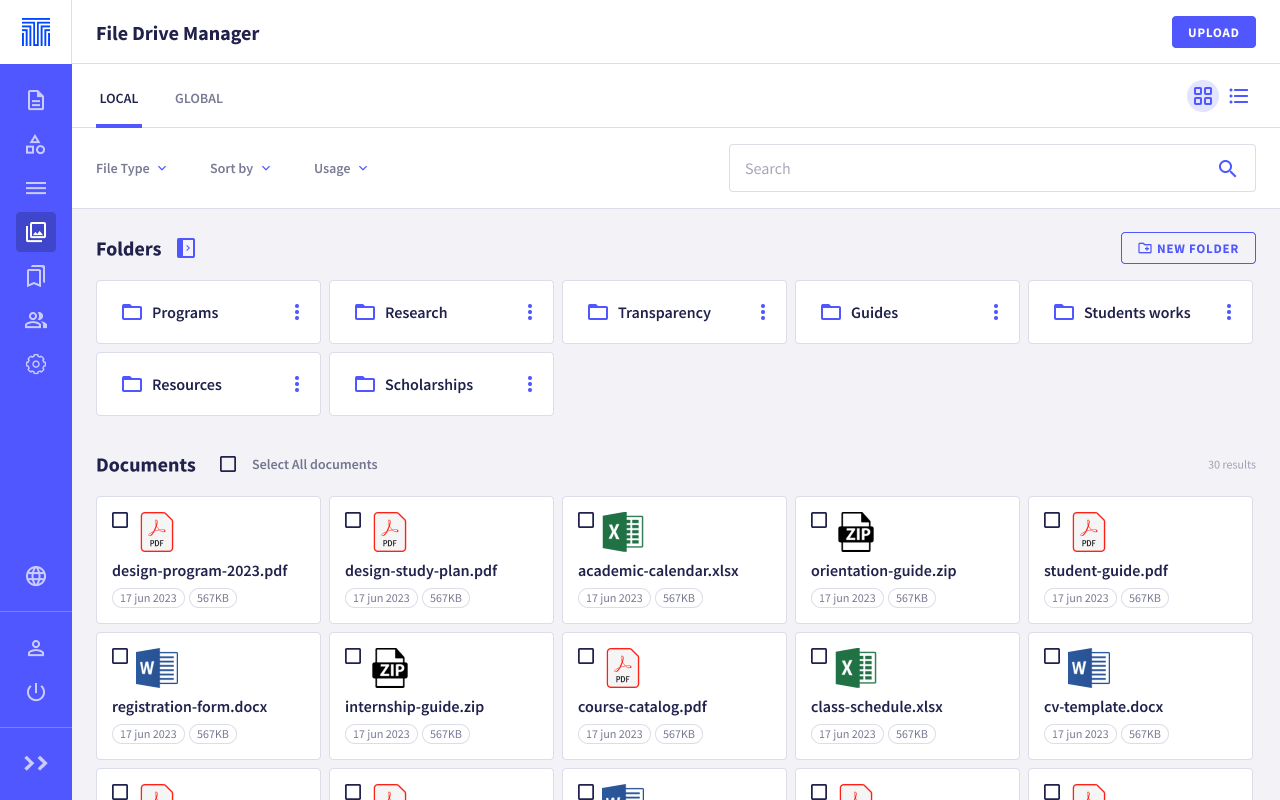
Uploading a file
Section titled “Uploading a file”Uploading a file is very easy: just click the Upload button on the right of the top bar to start the upload process.
- Modal: When you click to upload a document, it opens a modal to complete the upload process. We can do this by dragging the file into the modal directly from your file explorer, or by selecting it from your browser’s file picker. We can upload one or several files at a time.
- Uploading: Once the file is selected, the upload process begins.
- Data: Once uploaded, it shows the file detail in the side panel. We can fill in whichever file fields we want: Title, Alternative text and assign Tags to help us in a later search.
- Save: We save the data and the file is added to the File Drive.
Deleting a file
Section titled “Deleting a file”We can delete a file in two ways:
- By selecting the file we want to delete, opening the file actions and selecting the
Deleteoption. - By going into the file detail view and selecting the
Deleteoption that appears at the bottom of the right-hand panel.
Creating folders
Section titled “Creating folders”Griddo allows folders to be created to organize files.
- New folder: From the
New folderbutton and, if you have the folder panel open, from the icon that appears in the section you are in, you can create a new folder. - Modal: The modal opens so you can name the new folder. By default, the folder will be created in the location you are in, but you can select another folder to create it in.
- Folder: When the modal closes, the new folder appears.
Deleting folders
Section titled “Deleting folders”Deleting a folder is as simple as opening the folder actions and selecting the Delete option. Doing so will delete both the folder and the files it contains.
Accessing the global File Drive from a site’s File Drive
Section titled “Accessing the global File Drive from a site’s File Drive”From our site, if we want to access the global File Drive Manager, we just need to click the Global tab that appears above the filters. We will be able to view and add them to our pages from the editor, but we will not be able to edit or delete them from the site.
Other available actions
Section titled “Other available actions”From the File Drive Manager, you can perform several actions to make managing and reviewing documents easier.
Renaming a folder
Section titled “Renaming a folder”You can rename a folder by opening the actions and selecting the Rename option. Type the new name in the modal that appears and your folder will be renamed.
Moving items between folders
Section titled “Moving items between folders”You can move both files into folders and folders into other folders. Open the folder or file actions and select the Move to option. Then choose which folder you want to move it to.
Checking where files are being used
Section titled “Checking where files are being used”When a file, whether global or local, is being used on a page, we will be able to see where it is being used through its detail view. In the right-hand panel we have the In use tab and, from there, we can view a list of all the pages where this document is used.
Replacing a file
Section titled “Replacing a file”We can replace a file with a more up-to-date one, and it will be updated automatically on all the pages where it was associated.
To do so, we go into a file’s detail view and, at the bottom, click the Replace button and select the file we want to replace it with. We can choose what to do with the URL by selecting one of the options that appear in the dropdown:
- Replace the URL with a new one.
- Keep the original URL.